IDE controls reference
Controls depend on project type, permissions, selected file and runtime state. A disabled action can expose a reason in its tooltip. See Files and explorer, JUnit, and Hardware workbench for their contextual controls.
Header and editor
Section titled “Header and editor”| Control | What it does / when available |
|---|---|
| Instant Command workspace / Projects / Back | Returns to the workspace’s owning collection or assignment. |
| Save status icon | Opens account/local save details, Save now, and recovery actions when needed. See saving. |
| Runtime | Opens Java runtime options/status. Runtime availability depends on configuration and project requirements. |
| Run | Compiles if necessary, then starts the selected runtime; Ctrl+Enter. Busy states disable new runs. |
| Build | Microcontroller compile without starting a simulation. |
| Build options → Fast Build | Uses an available Fast Build credit. Disabled when priority/classroom compute applies or no credit is available. |
| Run options → Debug | Starts browser debugging for supported targets; unavailable elsewhere. |
| Pause / Resume simulator | Suspends/continues an active simulator. |
| Stop / Stop simulator | Cancels the active run or simulator. |
| Restart / Reset | Starts the supported simulator afresh; inspect target-specific state before using. |
| Flash | Opens supported physical-device workflow. Disabled for unsupported targets or busy operations. |
| Docs | Opens this guide in a separate tab. |
| Usage indicator | Expands priority/classroom usage or remaining personal allowances. View usage opens usage details; View plan appears for eligible upgrades. |
| Undo / Redo | Reverses/reapplies editor changes; unavailable when no corresponding edit exists. |
| Search Everywhere | Opens file/symbol/command search. |
| Split editor | Opens the current file in another group. |
| Filename tab | Activates that file; Close [path] closes its tab and keeps edits. |
| Breadcrumb segment | Navigates the current file’s project/path context. |
| Resize explorer / output / group | Drag the separator; its controls button provides keyboard-accessible resizing. |
| Keyboard shortcuts | Opens binding settings. |
File and Edit menus
Section titled “File and Edit menus”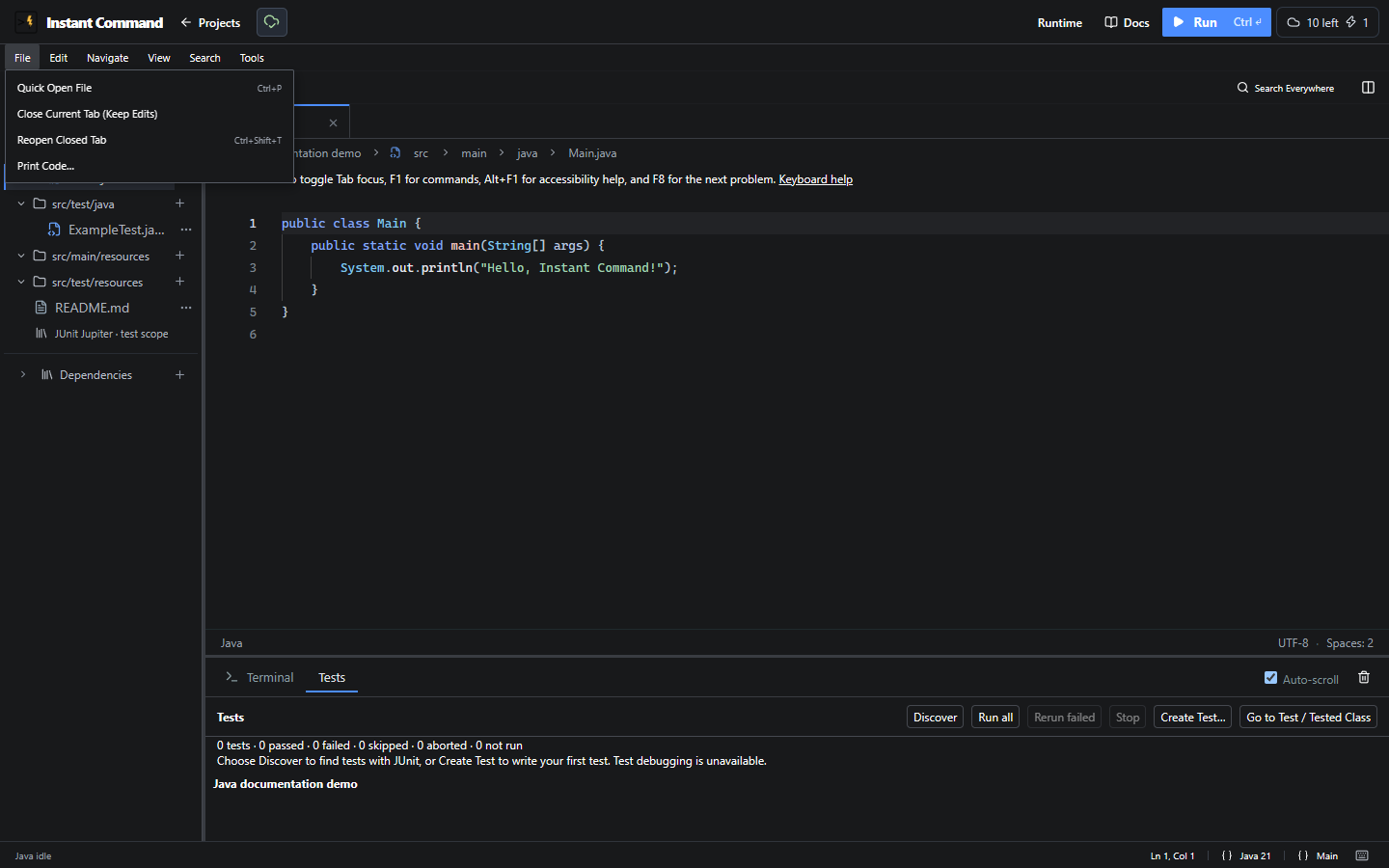
| Exact command | Effect |
|---|---|
| Quick Open File | Finds a file by name/path without running code. |
| Close Current Tab (Keep Edits) | Closes a view, retaining contents. |
| Reopen Closed Tab | Reopens a recently closed file. |
| Print Code… | Opens print scope and formatting settings. |
| Export project | Whole-project archive action when account entitlement permits it. Individual file downloads remain available. |
| Fold Current Region / Unfold Current Region | Collapses/expands the current code region. |
| Fold All / Unfold All | Collapses/expands all foldable regions. |
| Go to Matching Bracket | Moves the caret to its matching bracket. |
| Open Editor Settings | Opens project/editor preferences. |
Navigation and search
Section titled “Navigation and search”Mod means Ctrl on Windows/Linux and Command on macOS. Bindings can be changed in Keyboard Shortcuts, so this table describes defaults. Browser or operating-system shortcuts can take precedence.
| Command | Default | Effect / condition |
|---|---|---|
| Quick Open File | Mod+P | Filename/path chooser. |
| Search Everywhere | Mod+Alt+P | File, symbol and command categories. |
| Show Command Palette | Mod+Shift+P | Finds registered workspace actions. |
| Recent Files | Mod+E | Recently opened files. |
| Recent Locations | — | Previously visited source positions. |
| Navigate Back | Mod+Alt+Left | Earlier committed location; disabled with no earlier entry. |
| Navigate Forward | Mod+Alt+Right | Later location; disabled with no later entry. |
| Go to Line / Column | Mod+G | Opens a position in the current file. |
| Find in Files (Text Search) | Mod+Shift+F | Searches project text, with result previews. |
| File Structure | Mod+F12 | Language outline for the active file. |
| Search Workspace Symbols | — | Searches indexed symbols; requires language support. |
| Go to Definition | F12 | Opens a resolved declaration. |
| Peek Definition | Alt+F12 | Opens definition preview in the editor. |
| Go to Type Definition | — | Opens a resolved type. |
| Go to Implementation | — | Shows resolved implementations. |
| Find Usages (Semantic References) | Shift+F12 | Groups resolved symbol references by file; differs from text search. |
| Go to Super Method / Type | — | Shows a resolved parent declaration. |
| Type Hierarchy | — | Shows supported type relationships. |
| Incoming Call Hierarchy / Outgoing Call Hierarchy | — | Shows supported resolved callers/callees. |
| Next Method / Previous Method / Go to Enclosing Scope | — | Moves between declarations or enclosing scope. |
| Focus Problems (Workspace / Loaded Diagnostics) | — | Shows available editor diagnostics; not a full build. |
| Next Problem (Active File) / Previous Problem (Active File) | F8 / Shift+F8 | Navigates active-file diagnostics. |
| Next Problem (Workspace) / Previous Problem (Workspace) | — | Navigates available workspace diagnostics. |
| Toggle Line Bookmark | Mod+F2 | Adds/removes the current line bookmark. |
| Name Line Bookmark | — | Prompts for a project bookmark label. |
| Show Bookmarks | — | Opens saved project bookmarks. |
In a chooser, arrow keys change selection; Preview selected file (Alt+Enter) previews without opening a tab/history entry. Open file or Enter commits; Escape cancels and restores focus.
Find in Files temporarily uses the explorer for query/options and a lower pane for grouped results and previews. Enter/double-click opens a match. Closing search or running restores ordinary panels. Problems cover loaded diagnostics; a compiler can find additional errors.
View and Tools
Section titled “View and Tools”| Command | Default | Effect |
|---|---|---|
| Focus Editor | Mod+1 | Moves focus into the editor. |
| Focus Explorer / Terminal / Tests / Simulator / Virtual Lab | — | Activates the relevant tool when the workspace supports it. |
| Open Active File to the Side | — | Creates another editor view. |
| Focus Next Editor Group | Mod+Alt+Down | Changes active group. |
| Next File Tab / Previous File Tab | Mod+Alt+PageDown / PageUp | Cycles open files. |
| Maximize / Restore Editor | Mod+Alt+M | Expands/restores editor space. |
| Toggle Zen Mode | Mod+Alt+Z | Changes workspace chrome visibility. |
| Restore Default Panel Sizes | — | Restores default layout sizes. |
| Keyboard Shortcuts | — | Edits bindings; conflicts/invalid bindings need correction. |
| Editor color lab… | — | Edits shared theme colors; includes import/export/reset controls. |
| Show Quick Documentation | Mod+Alt+Q | Java symbol documentation at the caret. |
| Generate Javadoc for Symbol | — | Inserts source documentation for the selected Java declaration. |
| Synchronize Javadoc Tags… | — | Reviews tag updates for a changed Java signature. |
| Show Signature Help | Mod+Shift+Space | Java call parameter help. |
The Java-specific actions require a Java source file. Semantic navigation can be limited by unresolved symbols or unsupported operations. Generated documentation should be reviewed before saving.
Print Code
Section titled “Print Code”File → Print Code… snapshots the selected code for review before printing. Choose the offered scope and formatting in the dialog, then Print / Save as PDF… to open the browser’s print flow. It does not execute code or replace saving. File access/read-only conditions can limit available scopes; review the preview and any missing-file error before printing. Native printer/PDF destination choices belong to your browser.