Create an assignment
Only teachers can create assignments. Start in the class that will receive the work:
- Open Classes, choose a class, then select New Assignment or Add an assignment.
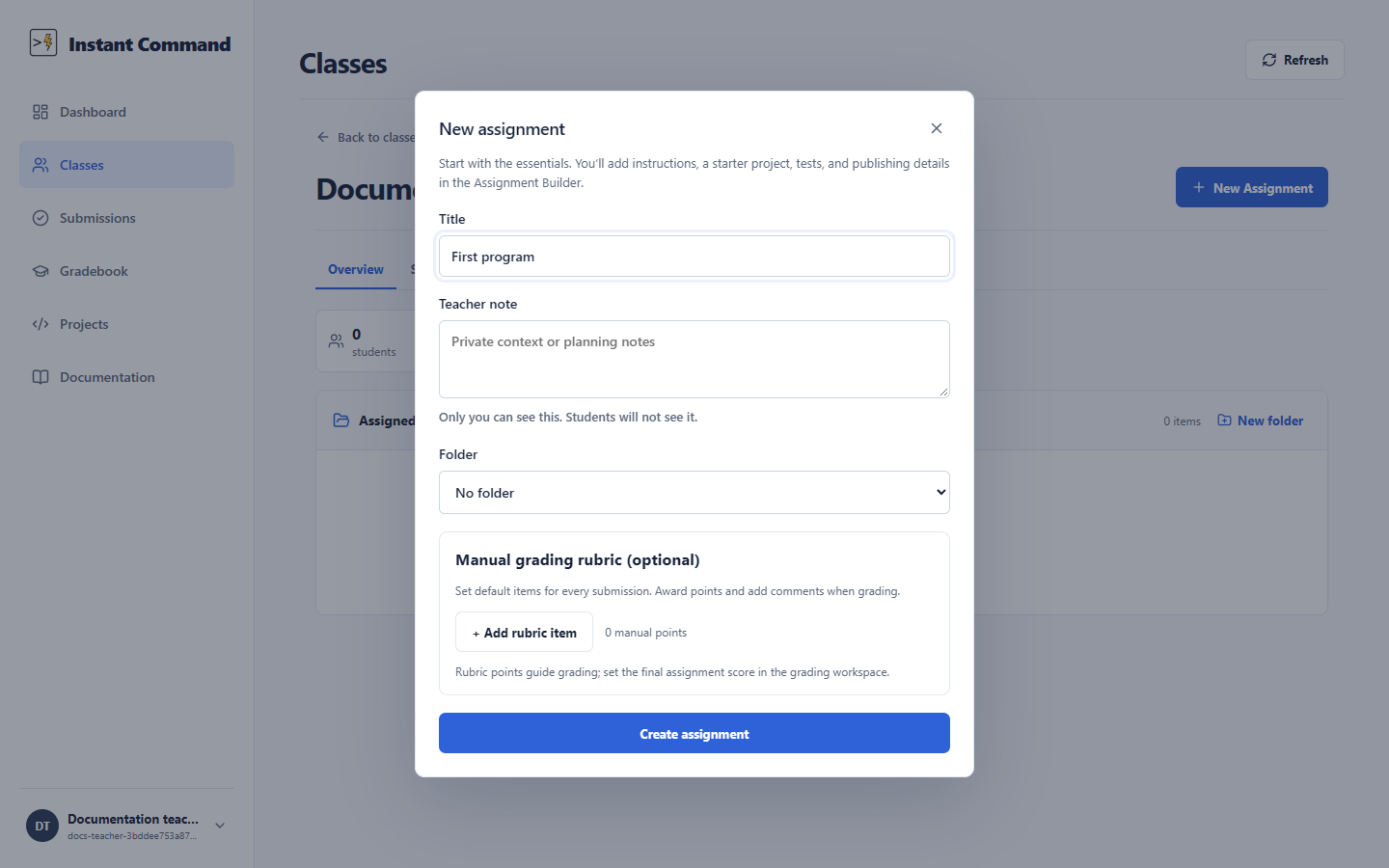
- Choose Create a new assignment. Enter a Title in the New assignment dialog. The optional Teacher note is private to you.
- Choose Create assignment to open the Assignment Builder.
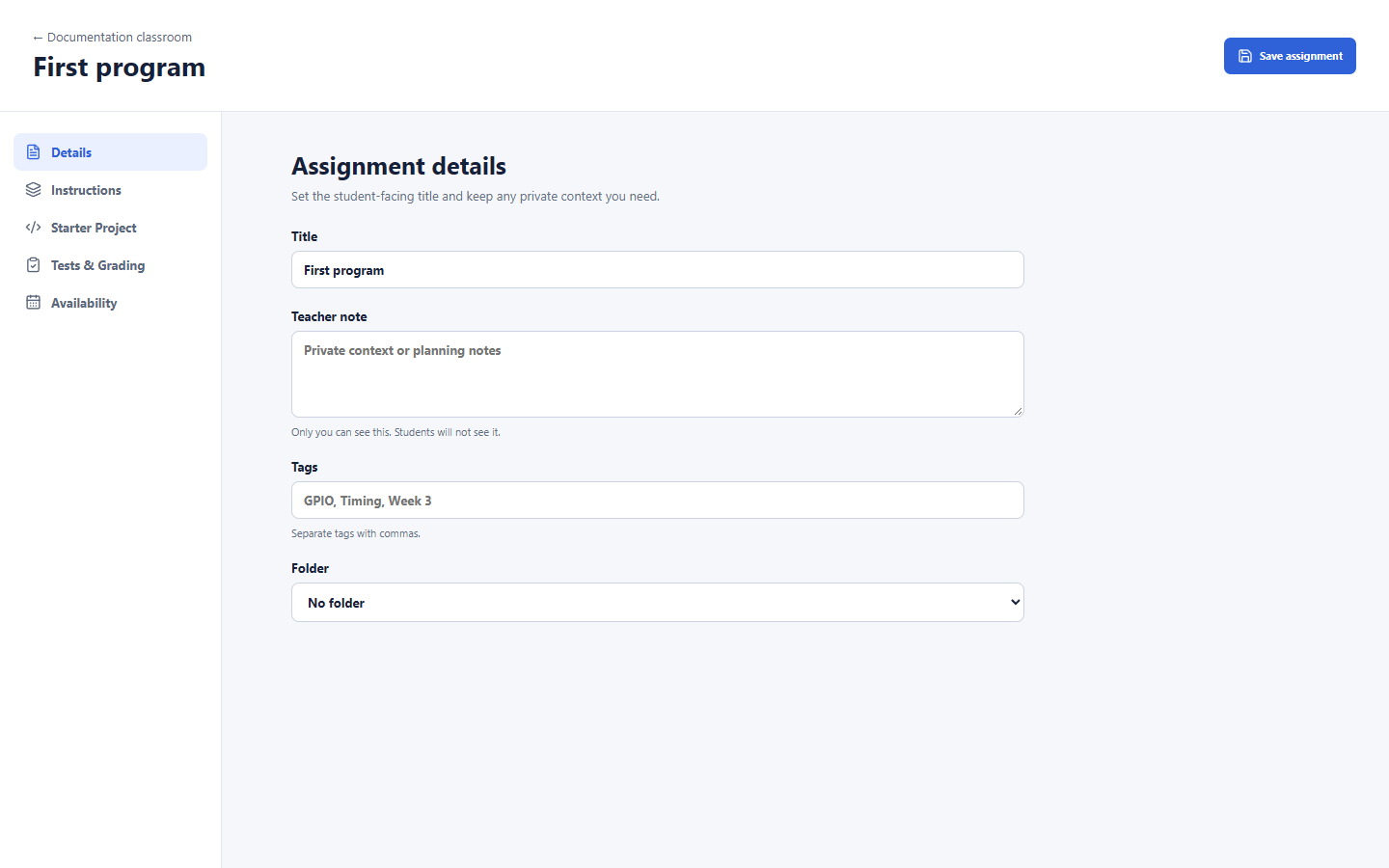
The builder has five sections:
| Section | What to set |
|---|---|
| Details | Student-facing title, private teacher note, tags, and folder |
| Instructions | A scrolling document or a guided sequence, built from the available text, code, image and callout blocks; Markdown import is available |
| Starter Project | Enabled Arduino, ESP-IDF or Java framework/target and an assignment-local starter; reusable selectors are currently hidden |
| Tests & Grading | Separate Grading and Tests workspaces, optional rubric/test links, total points and attempt limit |
| Availability | Open, closed, or archived status; optional release, due and closing dates |
For an embedded assignment, prepare a starter circuit before adding component checks. The test builder can then select components from that circuit. For Java assignments, choose Java 21 under Framework and target. See Automated grading for the two testing models.
Open in IDE saves before opening an assignment-local starter. Return and use Save assignment for assignment metadata and rubric changes. Save tests separately before linking them to rubric items.
Choose Save assignment after editing. A new assignment starts Closed; use Publishing assignments when it is ready for students.
For a new rubric-based assignment, allocate the full assignment maximum across named rubric items before choosing Open. An incomplete rubric may be saved as a Closed draft; it cannot be opened/submitted with a mismatched total.
Teacher note stays private. Remote instruction images need student-accessible HTTP(S) URLs. Markdown import stages editable source and preview before append/replace; local image references must be replaced with supported hosted URLs before import. Saving the assignment persists the imported document.
See IDE controls for editor controls and Automated grading for tests, rubric links and disclosure. Close dialog cancels creation; builder section buttons change the editing section without publishing work.