Publishing assignments
In the Assignment Builder, open Availability. New assignments start Closed. Choose Open when the instructions and starter are ready, then choose Save assignment.
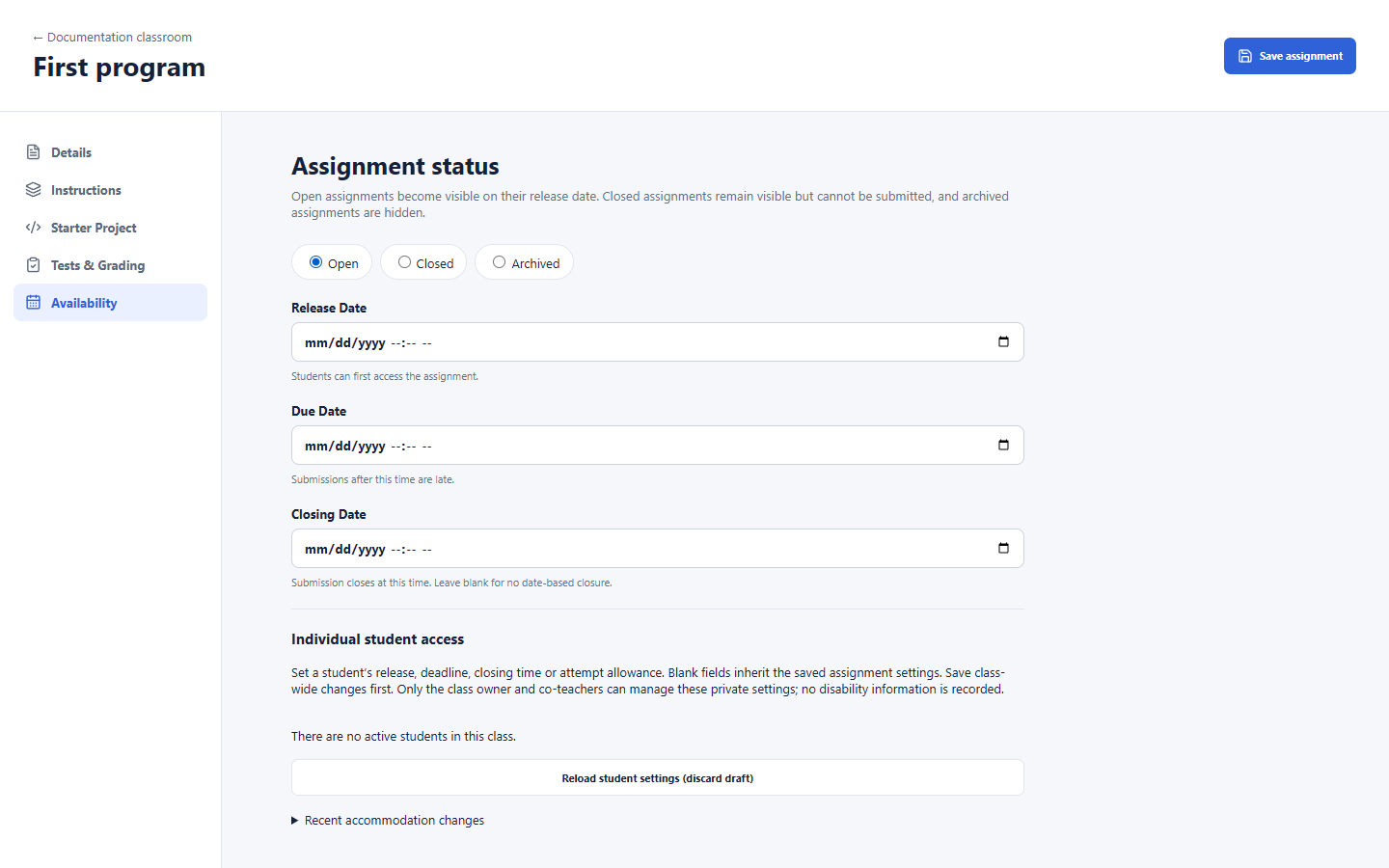
| Control | Effect |
|---|---|
| open | Makes work available subject to its release date; enables submission subject to server rules. |
| closed | Keeps released work visible but disables submission. |
| archived | Hides work without erasing earlier attempts. |
| Release Date | Earliest access time. |
| Due Date | Marks later attempts late. |
| Closing Date | Stops submission at the configured time. |
| Save assignment | Validates and persists the selected state and dates. |
See builder controls for the section navigation visible in this image.
An open assignment becomes visible on its Release Date if you set one. The optional Due Date marks later submissions as late. Closing Date stops submissions at that time; leave it blank for no date-based closure. Check the dates in your local time zone before saving.
Closed assignments remain visible to students, but students cannot submit them. Archived assignments are hidden. Changing the status does not erase earlier submissions.
Before opening an assignment, review its Instructions, Starter Project, and any Tests & Grading settings. If the assignment uses automated checks, run a representative starter or solution through the intended workflow and confirm the public feedback says what students need to know.
Opening an assignment and publishing its grades are separate actions.