Java projects
In Projects → New project, enter a name, choose Java and Java 21, then choose Create project. Enable JUnit testing is optional.
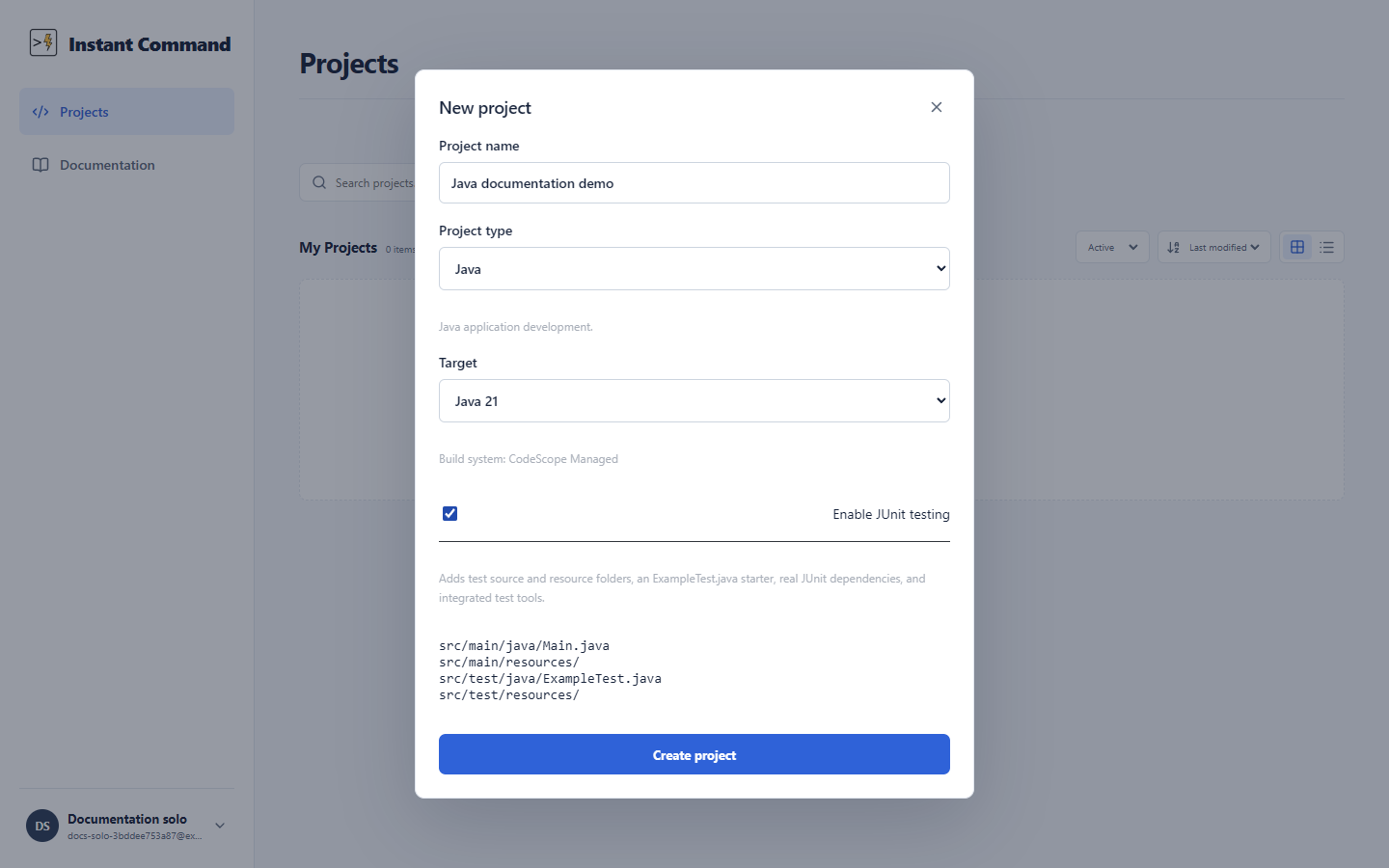
| Control | Action and result |
|---|---|
| Project name | Names the project saved to your account. |
| Project type | Selects Java, Arduino, or ESP-IDF; the target choices change with it. |
| Target | Selects Java 21 for a Java project. |
| Enable JUnit testing | Creates a separate test source set and an example test. |
| Create project | Saves the new project and opens its IDE. |
| Close dialog | Cancels creation. |
Source and resource folders
Section titled “Source and resource folders”New projects use this layout. Existing projects keep their configured paths; enabling tests does not move source files.
| Path | Put here |
|---|---|
src/main/java/Main.java |
The starter class containing public static void main(String[] args). |
src/main/java |
Production Java sources. Match package declarations to folders beneath this root, such as com/example/Helper.java for package com.example;. |
src/main/resources |
Classpath text resources such as .txt, .properties, or JSON files. Binary Java resources are unsupported. |
src/test/java |
Optional JUnit tests, excluded from ordinary Run and teacher grading. |
src/test/resources |
Optional test resources. A matching test resource overrides the production resource during tests. |
Use Package in the explorer for Java namespaces and Folder for ordinary filesystem structure. See Files and explorer.
Run a first program
Section titled “Run a first program”Open src/main/java/Main.java and use:
public class Main { public static void main(String[] args) { System.out.println("Hello, Instant Command!"); }}Choose Run or press Ctrl+Enter. The terminal should show Hello, Instant Command!. Type into Java terminal input when a running program requests standard input. Clear terminal removes displayed output; Stop cancels an active or queued run.
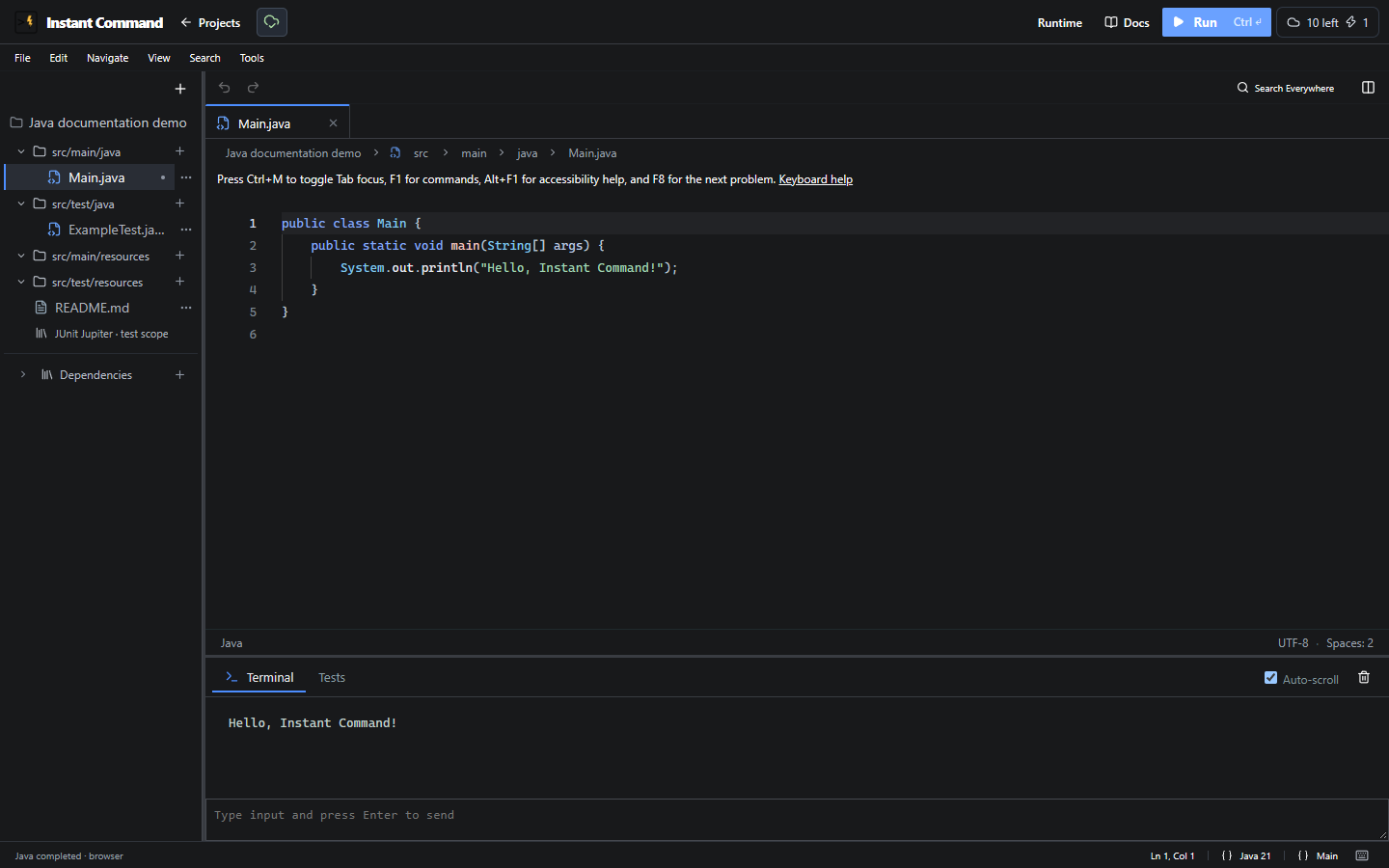
The IDE controls reference explains the toolbar, Runtime selector, menus, editor tabs and save indicator visible here.
Runtime and dependencies
Section titled “Runtime and dependencies”A compatible single-source project without dependencies can run in a browser worker; other projects use a server session. Network code and configured Virtual Labs require server execution. Browser execution has a five-minute run limit. Read a runtime failure before retrying: a program is not always safe to replay automatically.
Open Tools → Open Editor Settings for Java project settings: entrypoint, source/resource roots and testing configuration. The entrypoint is a fully qualified class name, such as com.example.Main, without .java.
Add Java dependency uploads/attaches a supported JAR or ZIP to an account-saved project. Attaching an archive differs from importing its classes in source. Maven and Gradle project creation/dependency management are unavailable.
| Problem | What to check |
|---|---|
| Main class cannot be found | Entry point, package declaration, and production source roots. |
| Run fails despite no editor error | Editor analysis is conservative. Compilation performs fuller Java/classpath validation; read the first diagnostic. |
| Resource missing | Use a configured resource root and the classpath-relative resource name. |
| Remote execution unavailable | Save the project and read the service error. Your operator may need to restore worker capacity. |
| Assertion fails | Use JUnit Tests; compilation and infrastructure errors are separate outcomes. |
Related: Save and recover, Virtual Lab, Assignment grading.